Spells and talents: your new spellbook, step by step
A clearer spellbook, six spells and an ultimate to bring along, three saved bars: here's an illustrated guide to building your playstyle.
Want to know what a spell does, improve it, then find it on your bar? All six classes share the same landmarks, each with its own spells and talents.
Available on PC with version 1.36.1. On Android, this interface will arrive with the next Google Play update; your current version remains playable. The Ranger is our example here. Tap an image to enlarge it.
1. Open the spellbook and find your spell
Open Abilities in the game menu, or press P on PC if you have kept the default shortcuts.
On PC, the chapter's spells and talents are on the left, the selected description on the right. Tabs along the edge switch chapters. The book shows your available points.
Chapters follow your progression: quick spells, area spells, defense and summons, bursts, ultimates, then keystones. Opening them requires the indicated level and enough points invested in earlier chapters. A locked entry tells you what is missing.
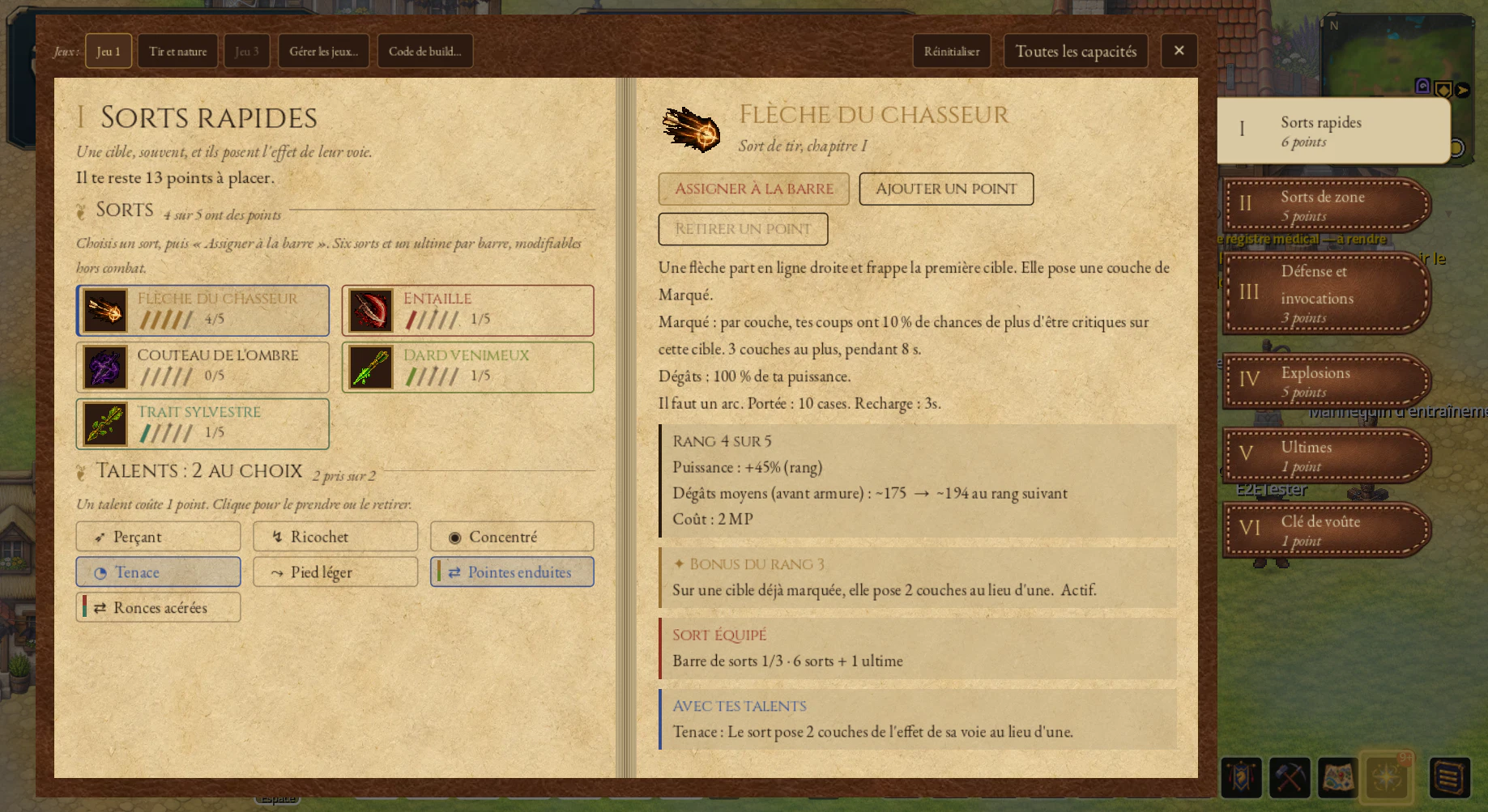
2. Learn and improve, one point at a time
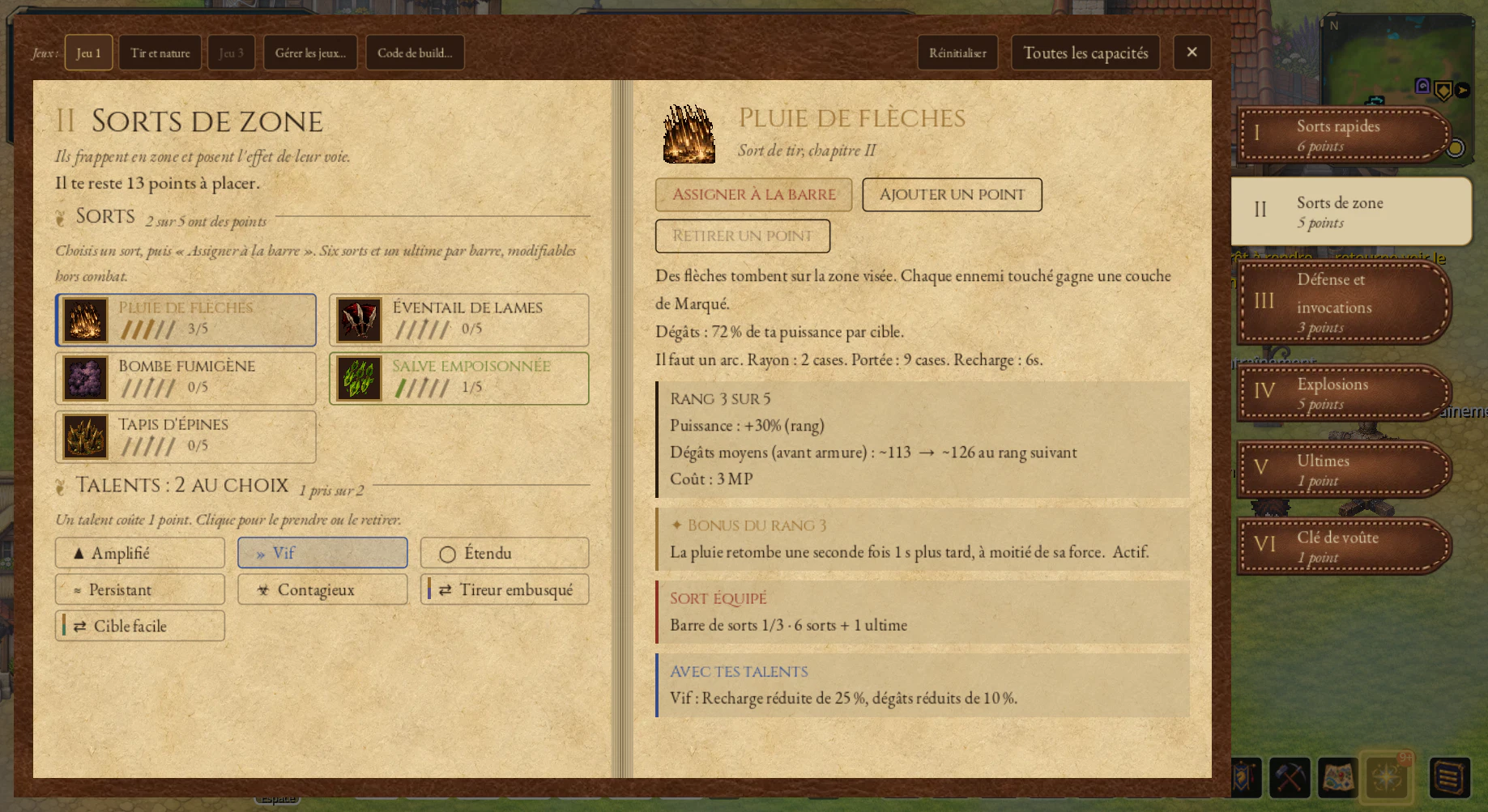
Choose a spell and use Add a point. The first rank teaches it; subsequent ranks strengthen it, up to rank 5. Some starting spells are already learned. Rank 3 unlocks a spell-specific bonus described in its entry.
Here, the entry for Arrow Rain at rank 3 shows its effect, cost and bonus.
Remove a point refunds one point for free outside combat, provided this does not break the access requirements of your other choices. Free starting ranks cannot be removed. To start over, Reset shows the cost before confirmation.
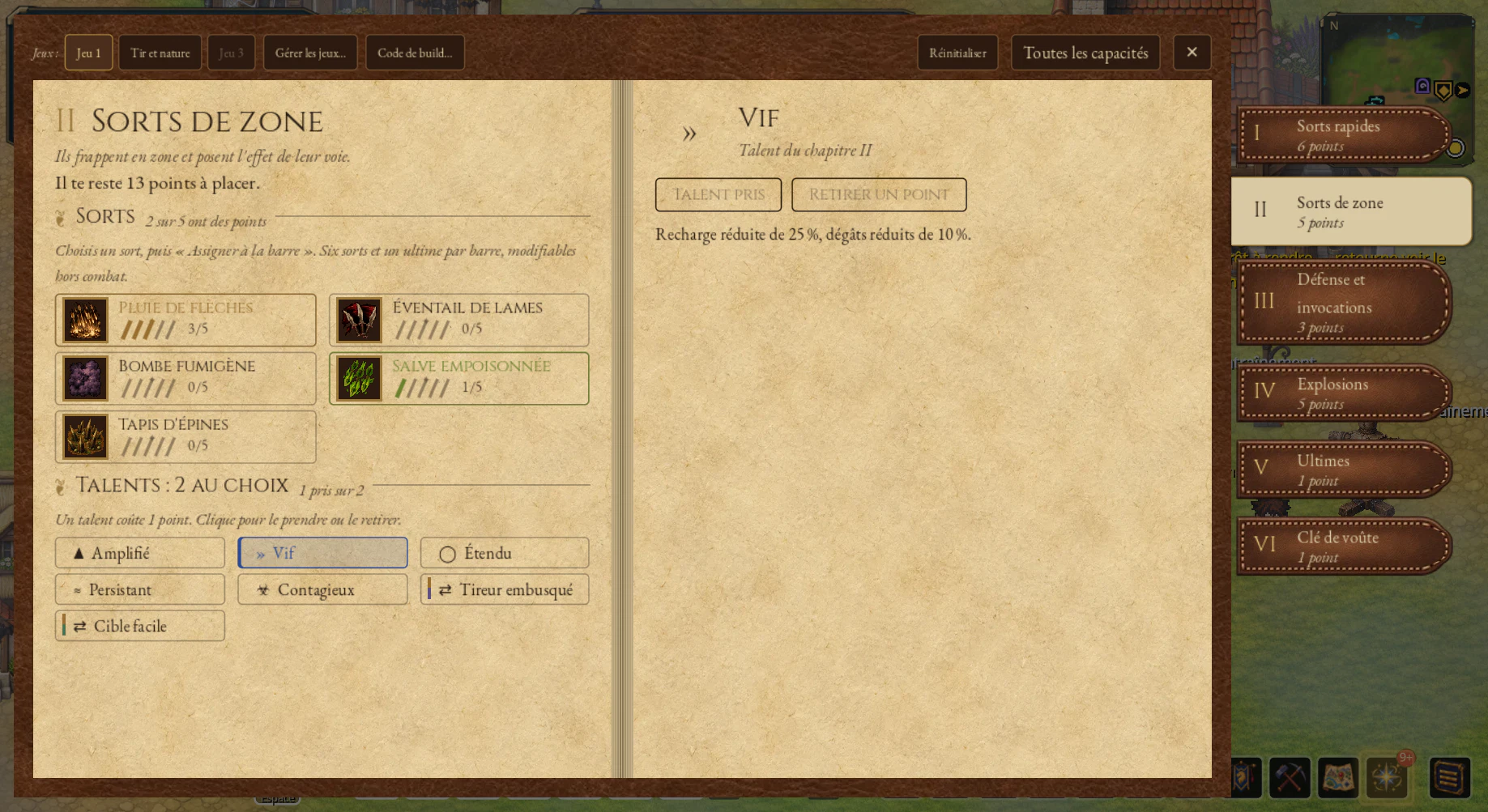
3. Talents that change how you play
In the first five chapters, you can choose up to two talents per chapter. They modify your spells or provide a passive effect. Bridges create interactions between two schools. These choices take no space on the bar.
For example, Swift in chapter II reduces the cooldown of that chapter's spells by 25% in exchange for 10% less damage. The same talent name can appear elsewhere: its description states which spells it affects.
On PC, clicking a talent adds or removes it directly if the conditions allow. On mobile, the first tap opens its description; the button at the bottom confirms the choice.
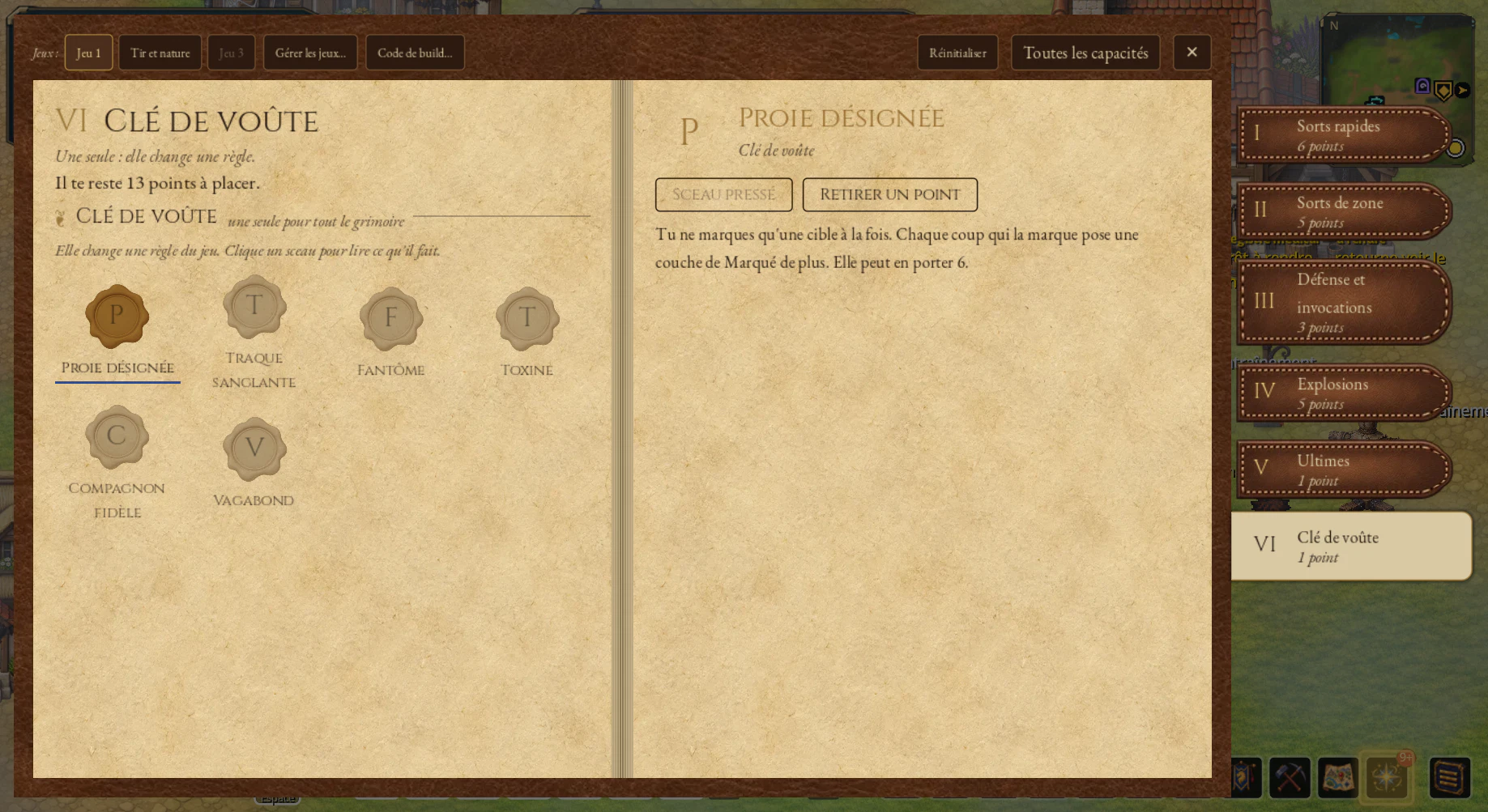
The final chapter offers one active keystone : a choice that changes a rule for your character. Here, Designated Prey focuses the Ranger's Mark on one target and allows more stacks to accumulate on it.
4. Put a spell on the bar
Assignment takes place outside combat, in three steps:
- Open the entry for a learned spell.
- Click Assign to action bar.
- Choose its slot in the selector.
Done: the spell is equipped. No extra “Prepare” step. Choosing an occupied slot replaces its spell; that spell remains learned. A spell can occupy only one slot on a given bar.
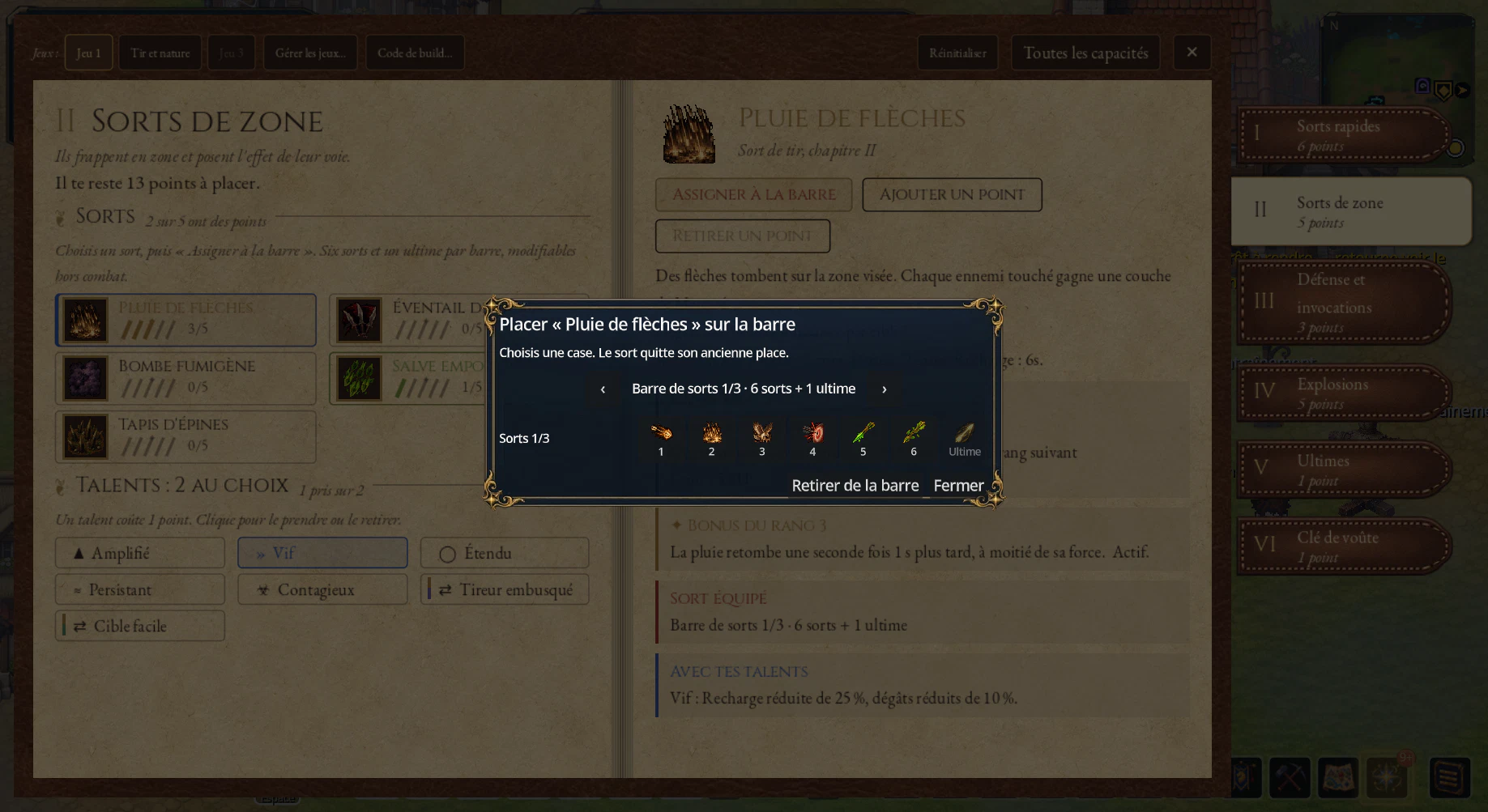
5. Six spells, one ultimate: your combat choices
The spell bar has seven slots: six ordinary spells and one ultimate in its dedicated slot. You can leave slots empty as you progress. Actions such as resting, potions and campfires keep their separate controls.
You can learn more spells than you carry: the active bar determines which ones you can cast. Your talents continue to apply without taking a slot.

6. Three saved bars for different adventures
The arrows cycle through three configurations. Each remembers its spells and their positions. You can also switch bars using the assignment selector's arrows without closing the spellbook.
In our example, bar 1 carries Arrow Rain. Bar 2 replaces it with Poisoned Volley in the second slot. Returning to bar 1 restores the first choice: no points to redistribute, no save button to find.
Switching happens outside combat and does not reset cooldowns. Your configurations persist after reconnecting.

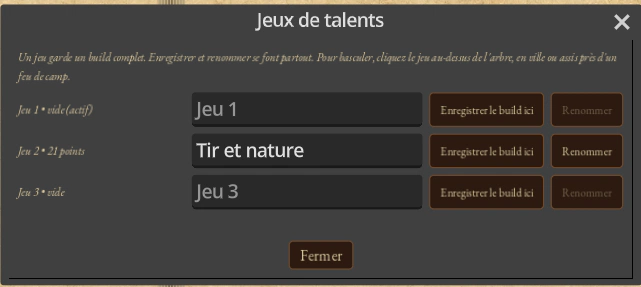
7. What about the “talent sets” at the top of the book?
They save your point allocation, while bars remember which spells to carry. To save an allocation, open Manage sets…, give it a name and choose Save the build here.
You have three sets. To activate another, click its name at the top of the spellbook, outside combat, in town or sitting near a campfire. Bars use spells learned in the active set: a spell that set no longer knows cannot be equipped.
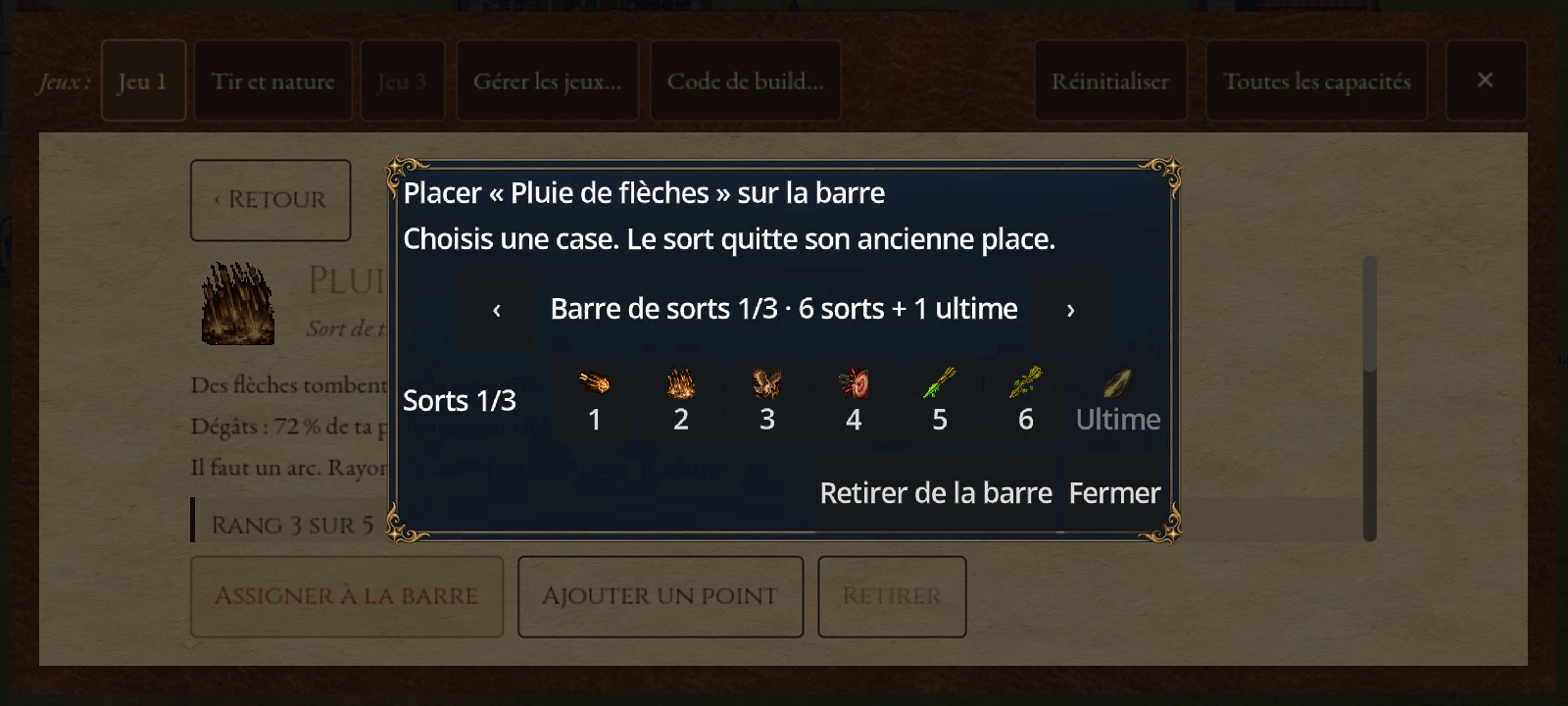
On your phone, the same choices with a tap
Tap a spell to open its entry, then Assign to action bar to choose a slot. Back returns to the chapter list. The buttons remain accessible below the entry.
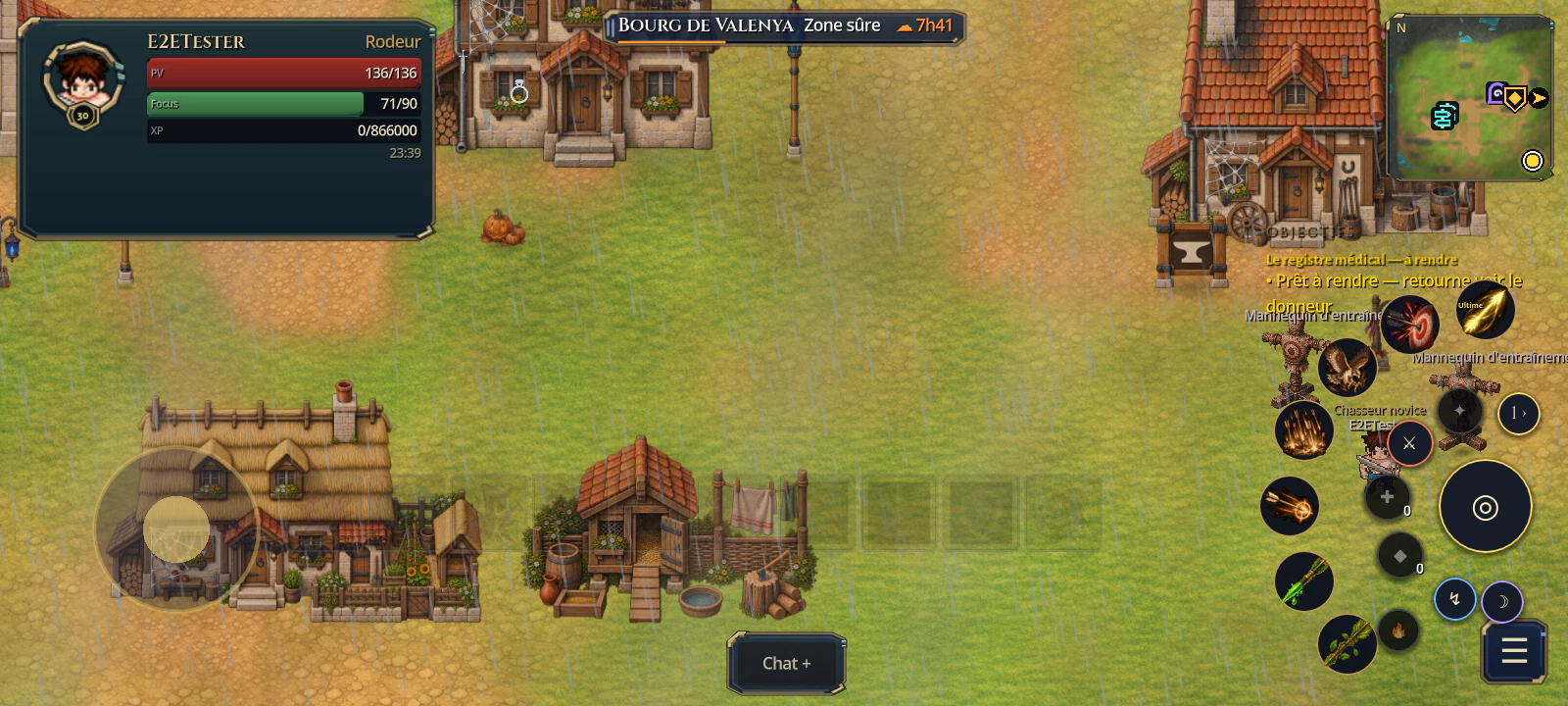
In game, the seven spells appear on the touch controls. The button showing the bar number and an arrow, here “1 ›”, switches to the next bar outside combat.
Start with your favorite spells, then try a variation on the second bar. The first will be waiting. Happy hunting!